
Manage Product Images in E-commerce with Local Visual Search
In e-commerce, product images are not just “assets”—they are conversion levers. But product image management usually breaks for the same reason: you can’t reliably find the right file when you need it. One SKU may have white-background shots, lifestyle scenes, detail crops, ad sizes, historical versions, and platform variants scattered across drives and folders.
That is where local visual search becomes a practical workflow: index your product image folders, search by a reference image, refine results with similarity + folder filters, and open the real source path to reuse, export, or replace assets. Everything runs locally, which is especially important when your materials are confidential.
Why product image management breaks at scale
Once you have thousands (or tens of thousands) of images, “folders + filenames” stops being a reliable retrieval system. Common failure points include:
- Multiple versions for the same SKU
- “Final_v3” becomes “Final_v3_retouch_ok” and no one knows what is actually approved.
- Background and lighting changes
- The same product shot on different backgrounds can look “different enough” to confuse manual browsing.
- Non-semantic filenames
- Camera exports, downloads, and screenshots create filenames that cannot be remembered or reused.
- Cross-team handoffs
- Design, photo, ops, and ads teams all touch the same assets. Without fast retrieval and source tracing, everyone rebuilds work.
The fix is to stop searching by words. Use the visuals to find the visuals.
The best workflow: local visual search + subject recognition
A stable “get the file” loop looks like this:
- Build a local index for the right folders
- Search by a reference image (same item, near-duplicate, or historical version)
- Refine with similarity threshold + folder filters
- Open the source folder path and take action (export, replace, archive)
For e-commerce, subject recognition is the key upgrade. Instead of matching the entire image (including background), it focuses on the product subject, making matches more robust when backgrounds vary.
If you want an offline, privacy-friendly experience similar to “visual product search,” local subject recognition is the most practical approach.
Step-by-step: build a searchable local product image library
Step 1: organize folders so you can narrow by SKU (minimum viable structure)
You do not need a perfect taxonomy on day one, but you should be able to narrow down by SKU or at least by category. For example:
ProductImages/
  SKU_12345_Kettle/
    Hero/
    Detail/
    Lifestyle/
    History/
  SKU_67890_Mug/
    Hero/
    Detail/
    Lifestyle/
Practical tips:
- Start with 1-3 high-frequency folders (hero images, PDP details, ad creatives)
- Avoid noisy folders at the beginning (downloads, chat caches)
- Keep paths stable (avoid frequent renames and moves)
Setup and indexing guide: /en/docs/first_init
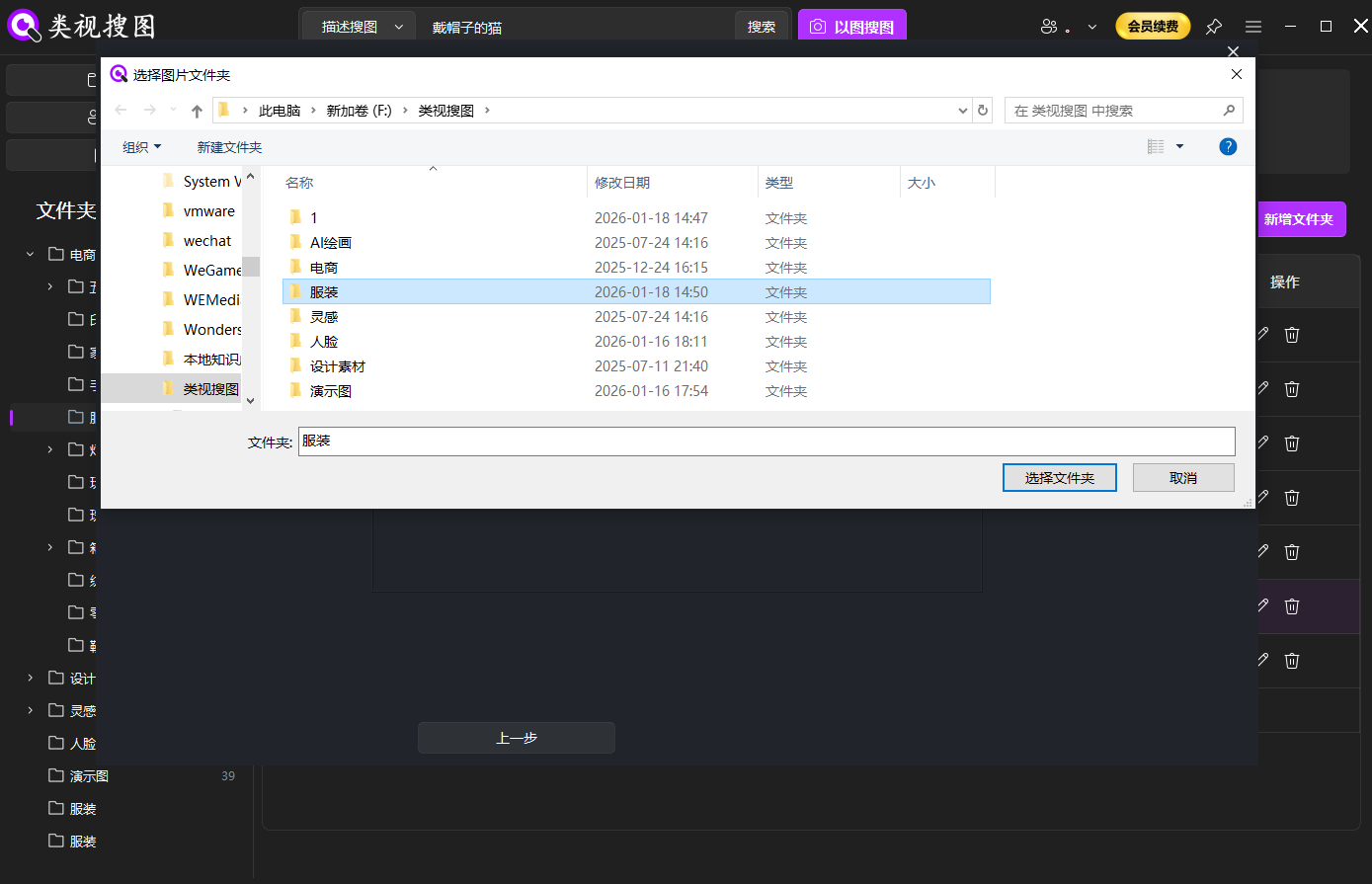 Caption: Start by indexing high-frequency product image folders so local visual search stays fast and focused.
Step 2: verify indexing and searchable counts in Gallery Management
Before you judge match quality, confirm:
- the folder is indexed
- AI processing is complete (searchable count is close to total files)
- the right feature switches are enabled (search by image, OCR, semantic search, etc.)
Guide: /en/docs/gallery-management
This step is the difference between “the model is bad” and “the library is not ready.”
Step-by-step: find same products, duplicates, and the latest version fast
Step 3: search by a reference image (upload, drag-and-drop, or paste)
In 类视搜图 and similar local tools, you can start search-by-image from the “similar products” entry, or simply drag, paste, or screenshot into the app to trigger retrieval.
Details: /en/docs/local-image-search
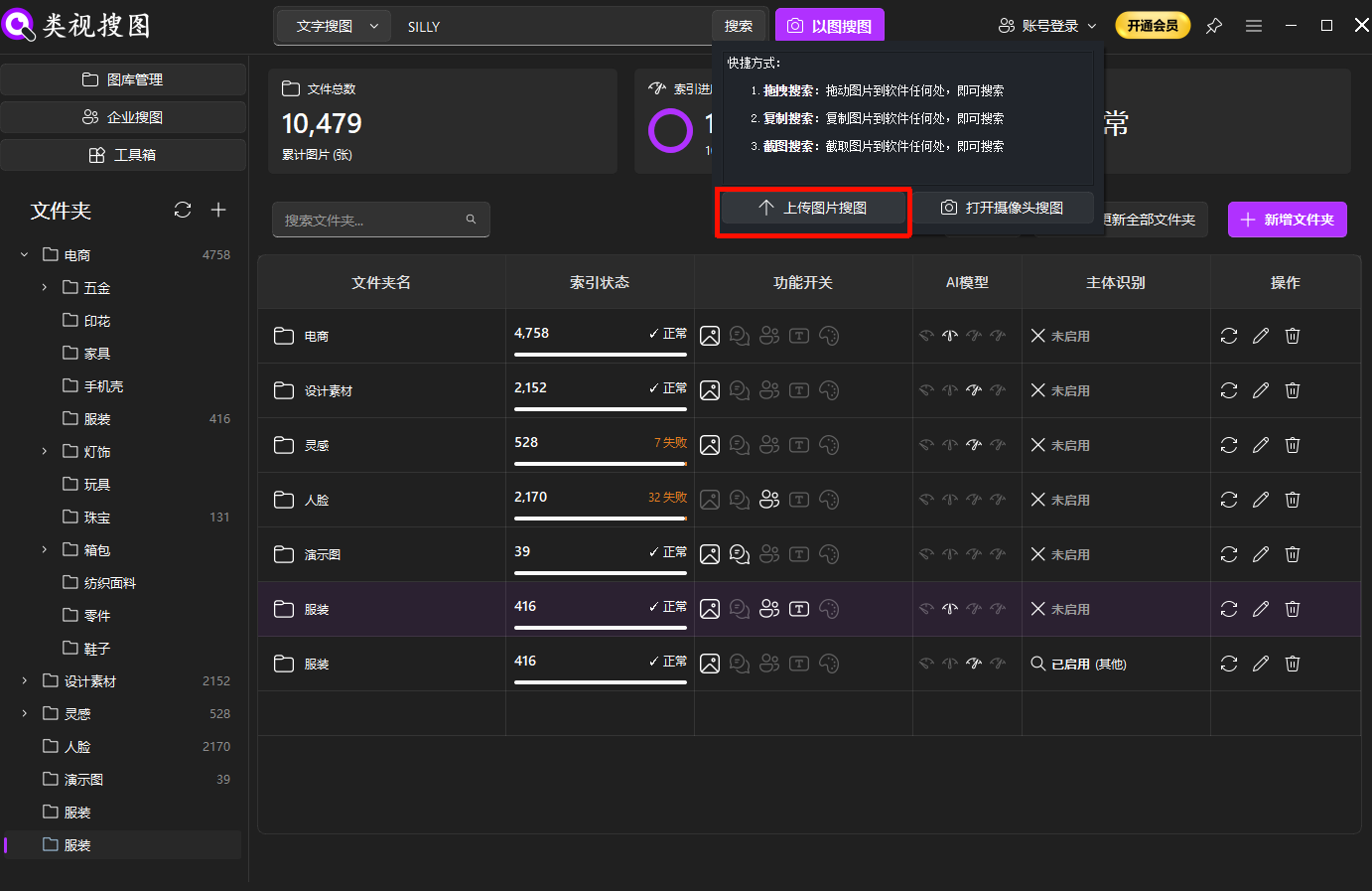 Caption: A reference image is the fastest way to retrieve the right SKU assets without relying on filenames.
Recommended strategy:
- Strict first, broad later
- Increase similarity to lock the exact SKU, then reduce it to discover near-duplicates or variations.
- Narrow scope early
- Filter by SKU folder or category folder before you scroll results.
Step 4: enable subject recognition to reduce background noise
Subject recognition is especially useful when:
- the same product is shot on different backgrounds
- one image contains multiple items (bundles, outfits, sets)
- you want “same product” matches, not “similar vibe” images
Learn more: /en/subject-recognition
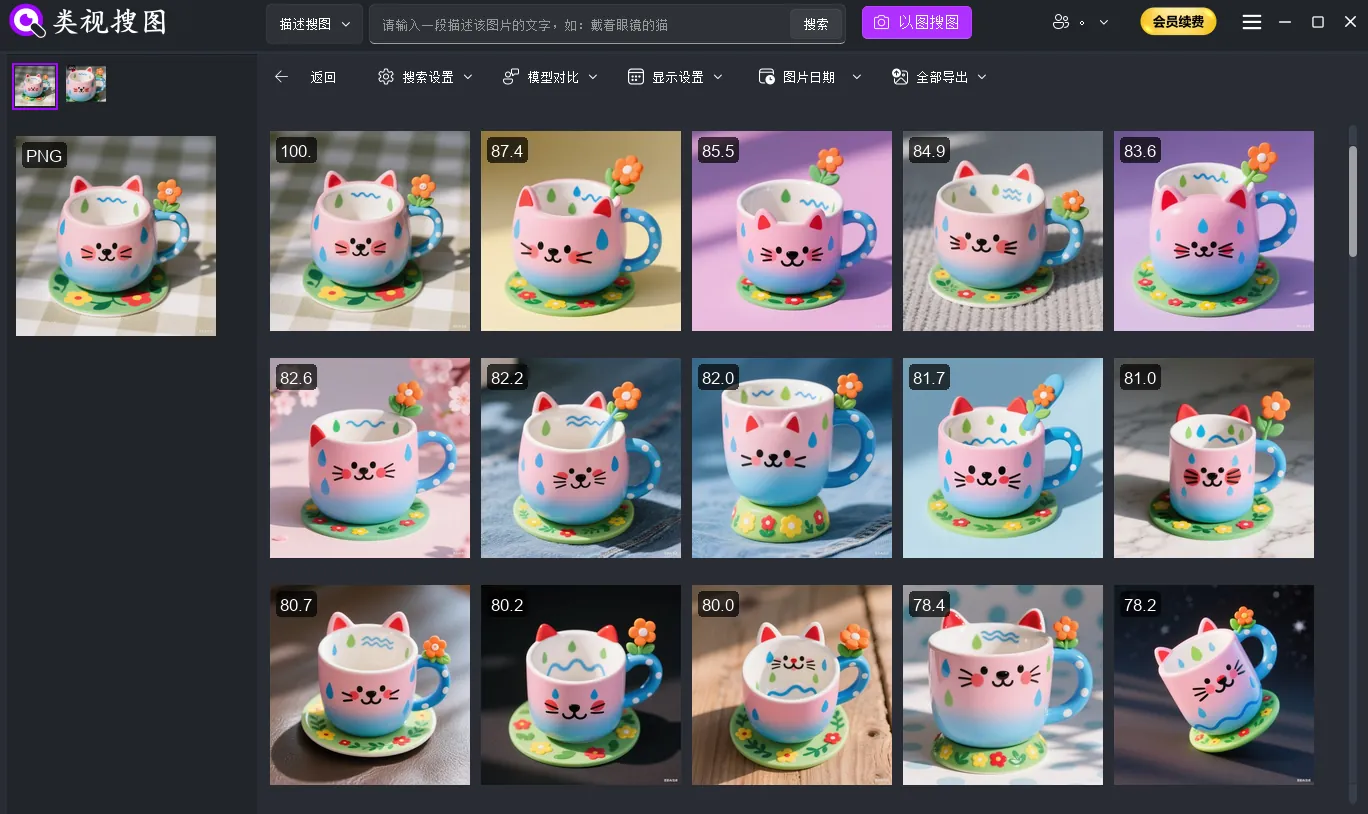 Caption: Subject recognition reduces background interference and improves match stability for product image management.
Step 5: refine results and open the source folder to complete the loop
The goal is not “seeing similar results.” The goal is getting the file path you can act on.
A reliable refinement order:
- Increase similarity threshold (lock the closest matches)
- Filter by folders (narrow to the SKU or category library)
- Reduce threshold (collect angle/crop variations)
Then open the source folder path so you can export, replace, or archive the whole batch.
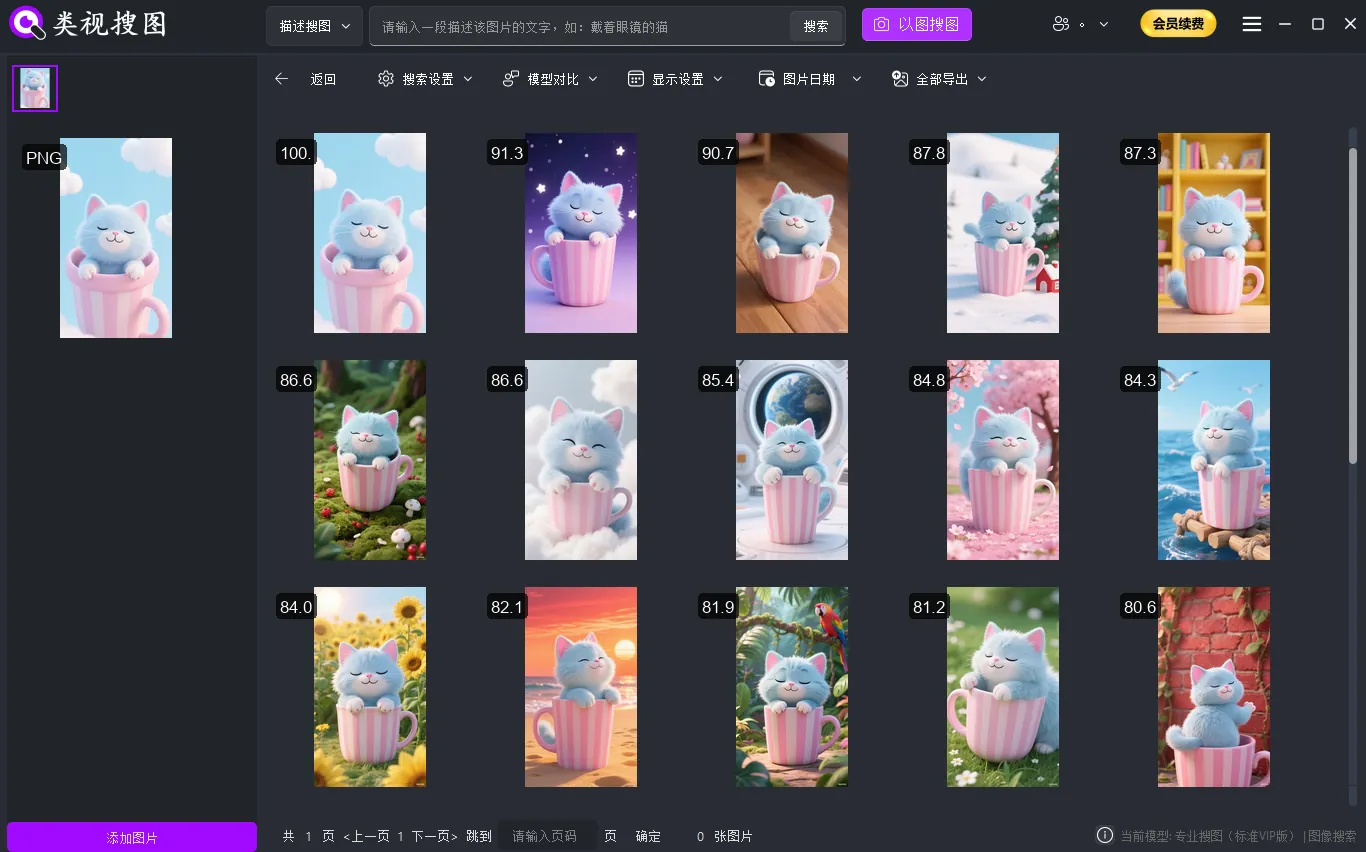 Caption: Refine first, then open the source folder path to turn “found it” into reusable assets.
Troubleshooting: /en/docs/faq
Turn “found images” into reusable assets: a maintenance checklist
Local visual search gets you speed. A lightweight maintenance habit gets you compounding gains.
- Keep folder paths stable
- If you rename/move folders frequently, tools may show thumbnails but fail to locate originals.
- Run “same product” checks before launches and campaigns
- Search by image to avoid using outdated or duplicate creatives.
- Sync updates after adding new images
- If you add files but never sync/index, they will not appear in results.
- Build a curated “Approved” library
- Keep approved hero/PDP images in a low-noise folder so future searches converge faster.
- Learn result-page browsing and filtering
- Filters and source-path actions are where real efficiency comes from: /en/docs/browsing-images
FAQ
Q: Why are results messy when the same SKU has different backgrounds or angles?
A: Enable subject recognition and use a strict-to-broad similarity strategy. Also narrow scope to the SKU folder before browsing.
Q: How do I find the approved hero image quickly when results are too many?
A: Increase similarity threshold first, then filter by SKU folder, then reduce similarity to collect variations.
Q: I added new product images but cannot find them. Why?
A: You likely need to sync/update indexing and confirm searchable counts in Gallery Management: /en/docs/gallery-management
Q: I replaced an image file but results still show the old thumbnail. Why?
A: Local indexes may treat it as the old file. Sync/update, and if needed trigger re-processing for that folder.
Summary and next step
For e-commerce teams, product image management becomes manageable when you standardize a repeatable loop:
Index → local visual search → refine → open source folder → reuse/replace/archive.
Next step:
- Index one core “hero images” folder
- Test with three reference types (white background, lifestyle scene, detail crop)
- Open source folders and build a small “Approved” library
Get started: /en/download