
Local Reverse Image Search for Design, Ecom, Photo Archives
When image libraries grow into the tens of thousands, filenames stop helping. You remember what an asset looks like, not what it was named. Local reverse image search turns visual similarity into a searchable signal, so you can find related assets, past versions, or the same scene without uploading anything to the cloud.
This guide explains where local reverse image search delivers the most value—design, ecommerce, photography, and archive cleanup—and how to implement a reliable workflow that keeps your library clean and reusable.
For design and ecommerce teams, the value is speed and privacy: you can match visual versions without leaking assets online. For photographers and archivists, it means culling is no longer a manual scroll but a structured visual match. Local reverse image search does not replace naming conventions; it adds a visual entry point that works even when naming fails.
You typically need it in these moments:
- A design review needs a reference with the same layout or visual rhythm
- An ecommerce refresh requires last season’s hero image, but the folder names are messy
- A photo delivery needs the best frames from one scene across hundreds of near-duplicates
- An archive cleanup needs the source of a screenshot or a related diagram set
Why local reverse image search works best in these scenarios
These four scenarios look different on the surface, but they share the same structure problems:
- Large libraries with weak naming: exports, screenshots, and camera files rarely carry meaningful names.
- Multiple versions that require traceability: design iterations, product image versions, and photo selects all need fast recall.
- Assets scattered across folders and drives: project archives, shared drives, and old backups fragment search.
- Privacy or compliance constraints: teams prefer offline workflows that keep sensitive assets local.
Local reverse image search is strong whenever you must match visuals quickly, without relying on filenames or internet access.
If you want the workflow to stay reusable, the key is not just matching, but opening the source folder and curating a cleaner library. The steps below are designed to make that repeatable.
Core workflow: index → search by image → refine → reuse
No matter your role, the workflow is consistent and repeatable.
Step 1: index the right folders first
Search quality depends on scope. Start with 1–3 high-frequency folders rather than indexing everything. Setup steps: /en/docs/first_init.
Scope tips that keep results clean:
- Start with the folders you revisit weekly (active projects, launch assets, delivery folders)
- Exclude download dumps, chat exports, and old duplicates during the first pass
- Keep folder names stable so source-path location remains reliable
After indexing, check your library status in gallery management to confirm recognition is complete: /en/docs/gallery-management.
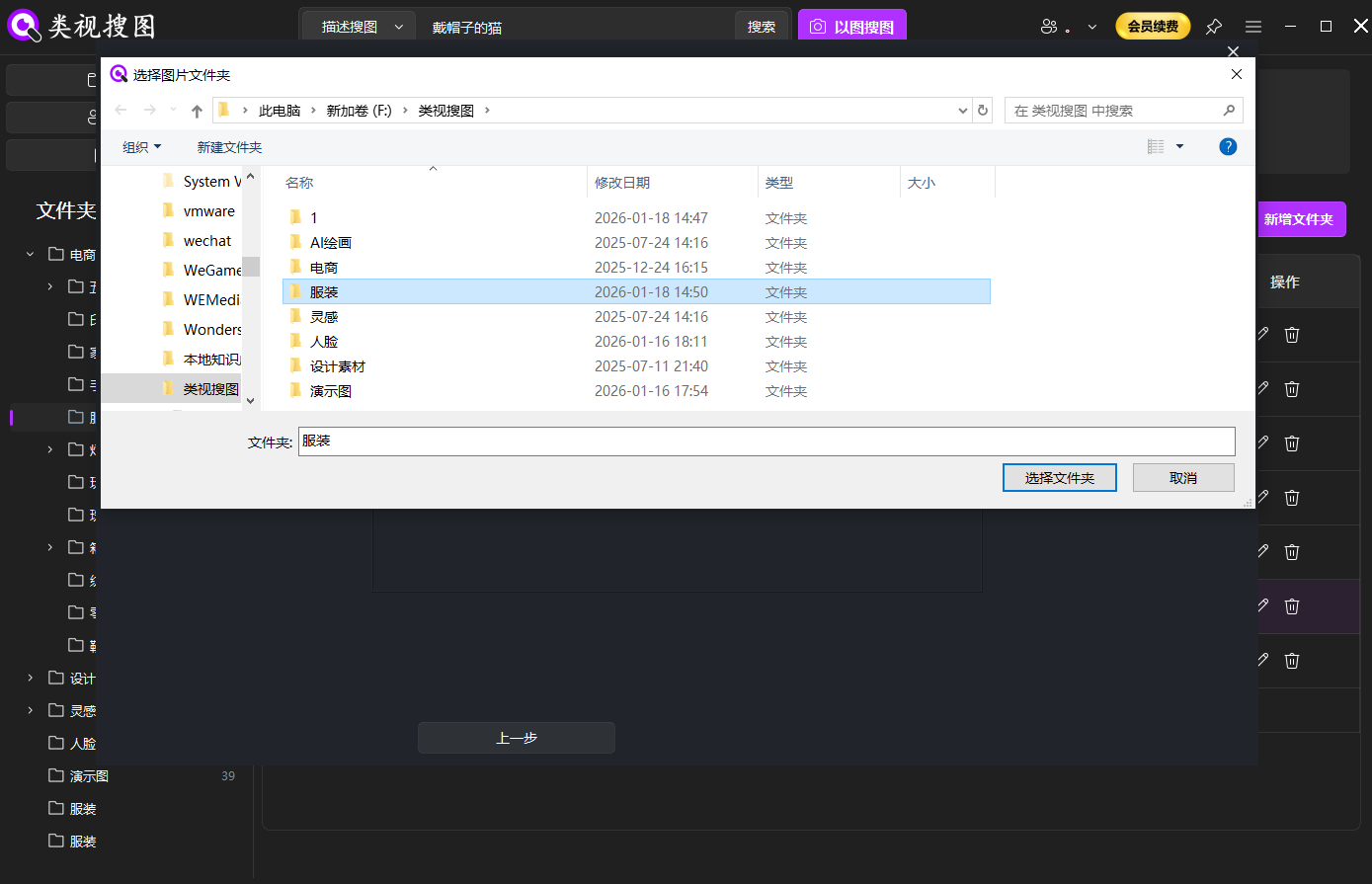 Caption: Index high-frequency folders first so local reverse image search stays fast and accurate.
Step 2: upload a reference image to start
Reference images can be originals, screenshots, or cropped details. Pick one with a clear subject and strong visual cues. Begin with a stricter similarity threshold, then expand once you have the core matches.
Use two similarity bands for control:
- High threshold to lock the closest matches
- Relaxed threshold to capture angle changes or light variations
Reference image checklist:
- Clear edges and stable contrast
- Keep key elements visible (product silhouette, layout grid, facial expression)
- For screenshots, choose the version with the most UI context and visible titles
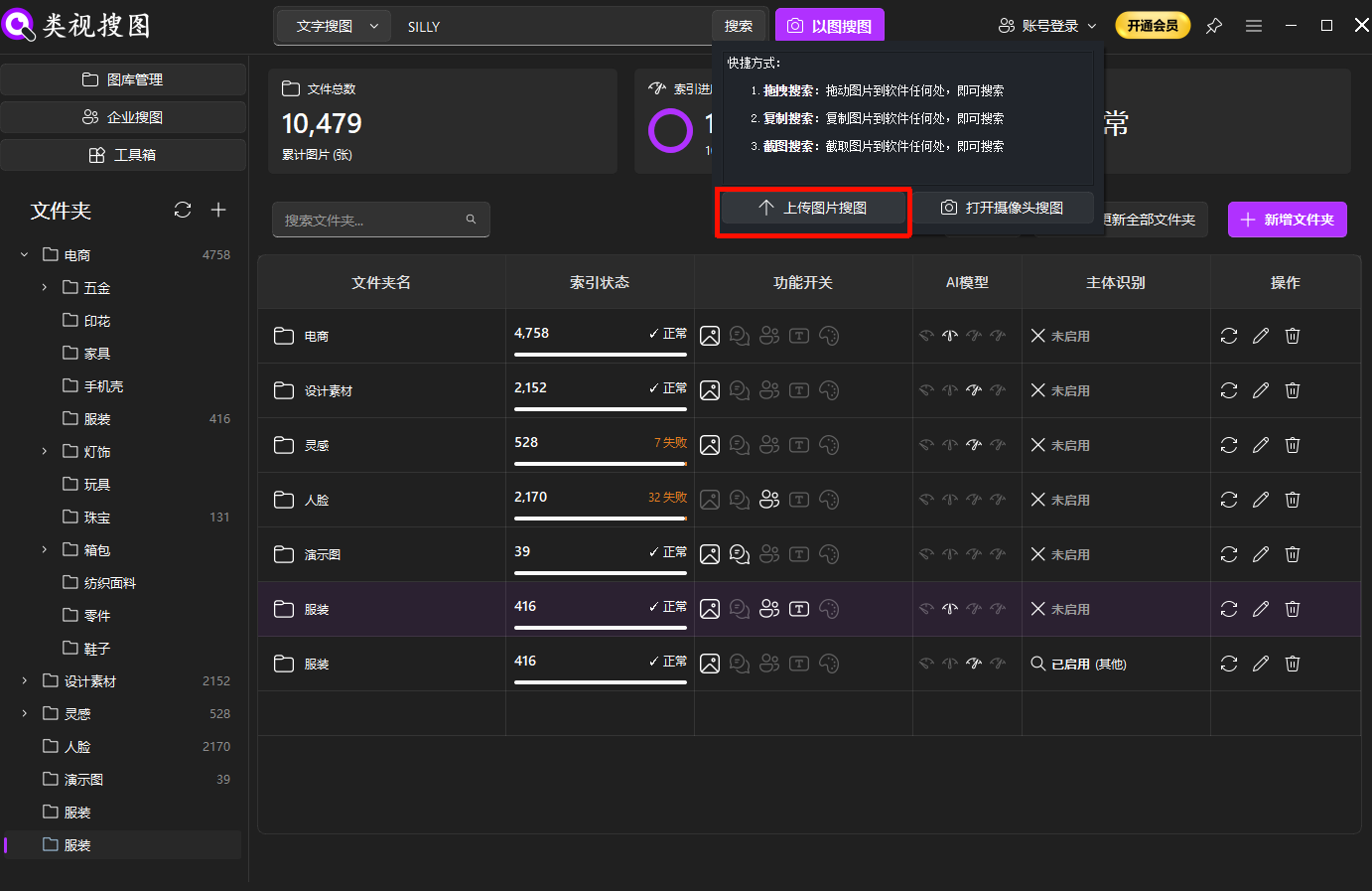 Caption: A strong reference image helps local reverse image search lock onto the right cluster quickly.
Step 3: refine by similarity and folder scope
When results are broad, raise similarity first, then filter by folder, and finally widen the threshold to capture variants. Results browsing tips: /en/docs/browsing-images.
Recommended convergence order:
- Raise similarity to isolate the closest cluster
- Filter by folder or project to reduce noise
- Relax similarity to capture adjacent variants
After you identify the right cluster, always open the source folder and curate the usable files. That step is what turns search into a reusable archive.
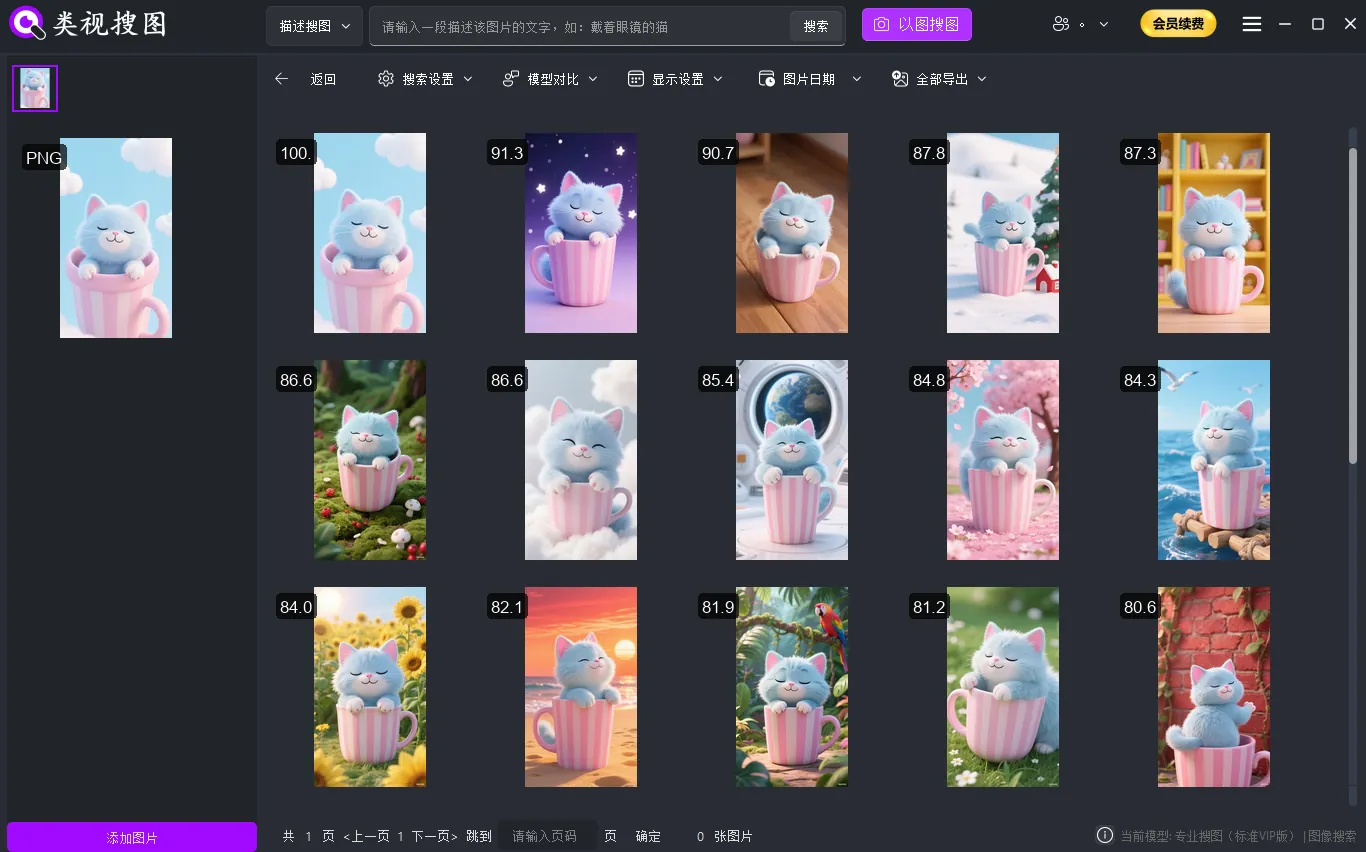 Caption: Converge with similarity and folder filters, then open the source folder to reuse files.
Use cases by scene: design, ecommerce, photography, archives
Below are the most common scenarios where local reverse image search saves real time.
Design: find inspiration and reuse proven references
Design teams often know the look they want but cannot locate the original asset. Local reverse image search helps you:
- Pull visuals with matching style, layout, or color from past projects
- Trace back a reference image to its original file and related exports
- Build a reusable inspiration folder by collecting near-duplicates
A practical routine is to start broad with semantic descriptions, then use reverse image search to converge on near-identical layouts or compositions. If you want the semantic workflow first, see: /en/articles/posts/2026/designers-find-inspiration-with-semantic-image-search-local-workflow.
Design asset types that benefit most:
- Brand key visuals and poster layouts
- Packaging and ecommerce detail-page grids
- UI screens and component snapshots
Ecommerce: product image version control and duplicate checks
Product imagery has many variants—hero shots, white backgrounds, lifestyle scenes, platform-specific crops. Local reverse image search makes it easy to find the latest usable version and avoid re-creating assets.
Common ecommerce tasks it solves:
- Recovering last season’s hero images during a relaunch
- Checking duplicates across campaigns and channels
- Locating full image sets for a SKU (hero, detail, lifestyle, crop)
For ecommerce, enabling subject recognition is critical to reduce background noise. Learn how it works: /en/subject-recognition.
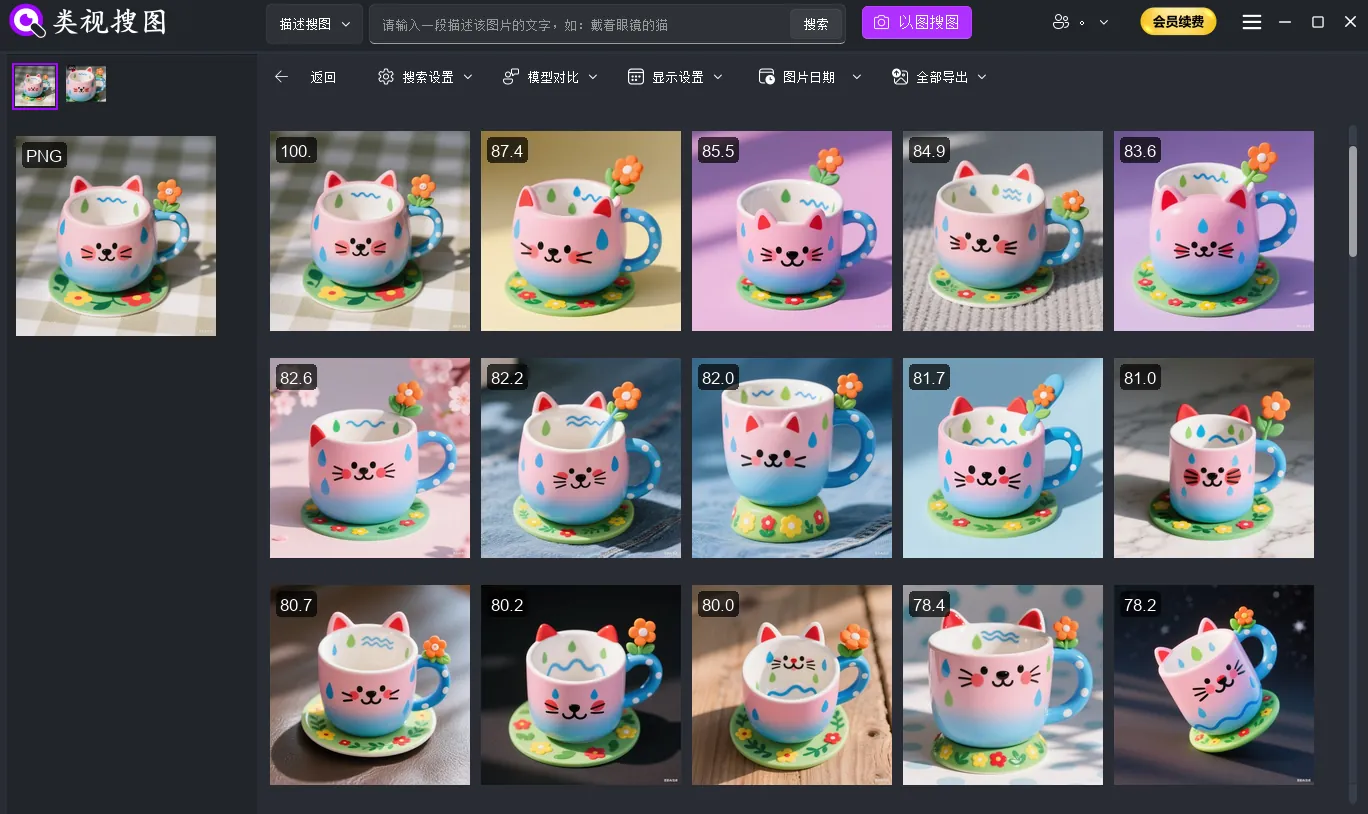 Caption: Subject recognition keeps local reverse image search focused on the product, not the background.
Photography: culling similar scenes and grouping shoots
Photographers lose time scrolling through near-duplicates. With a strong reference image, you can pull the entire scene cluster, then refine by similarity and time range to choose the best frames. This is especially effective for events, weddings, and travel shoots where hundreds of near-identical shots exist.
Key habits that speed up the workflow:
- Index only the current shoot folder first
- Use a high similarity threshold to lock onto the same camera angle
- Open the source folder and move selects into a curated delivery folder
Add a time filter when possible. Most events happen within a tight window, so a simple date range can cut the candidate set dramatically.
Archives and research: screenshots, documents, and knowledge cleanup
Knowledge archives tend to be messy: screenshots, diagrams, reports, and study material spread across drives. Local reverse image search lets you recover a forgotten screenshot or group related visuals by similarity. If a screenshot includes text, combine OCR search for a second pass to reduce noise.
The payoff is faster retrieval and a cleaner archive for future reuse—without sending sensitive content online.
Library organization patterns that keep results clean
Local reverse image search becomes more reliable when folder structure mirrors how teams actually work. A simple, stable hierarchy beats an elaborate taxonomy you never maintain.
Recommended structure patterns:
- Selects vs projects: keep a curated “selects” library separate from active project folders
- Product or campaign clusters: group by SKU, campaign, or season so filters stay meaningful
- Delivery vs source: store final exports alongside a source folder to trace the asset lineage
If your folders move frequently, search results still show previews but “open source folder” may fail. Keeping the top-level folders stable makes reverse search feel instantaneous and trustworthy.
Maintenance routine for teams
If multiple people touch the library, a lightweight maintenance routine protects search quality:
- Weekly: move the best results into a curated folder and delete near-duplicates
- Monthly: archive inactive projects into a read-only folder to reduce noise
- After uploads: sync indexing so new assets are searchable
When teams follow this cadence, reverse image search becomes a reliable shared system instead of a personal tool.
How to combine search modes effectively
| Mode | Best for | Strength |
|---|---|---|
| Local reverse image search | You already have a reference image | Fast, precise visual matching |
| Semantic search | You only have a description | Ideal for expanding inspiration |
| OCR text search | The image contains clear text | Great for documents and screenshots |
A reliable sequence is: semantic expansion → reverse image convergence → OCR refinement. This keeps both coverage and accuracy in balance.
When you already have a strong reference image, reverse image search should be the first step. Use semantic or OCR only to broaden or refine after you have a tight cluster.
Common pitfalls and fixes
- Indexing everything at once: it increases noise and slows search. Start narrow, expand later.
- Low-quality reference images: blurry or over-cropped references drift; use the clearest version possible.
- Skipping source folder review: without opening the source, you cannot build a reusable archive.
- Not syncing after new assets: when new files are added, run a sync so they are searchable.
- Using only one search mode: match the tool to the job—reverse search for references, semantic for intent, OCR for text-heavy assets.
FAQ
Q: Can I recover the original image from a cropped detail?
A: Often yes, as long as the crop includes distinctive structure or texture. Use a high similarity threshold first.
Q: Why do I get too many results?
A: Raise similarity, filter by folder, then relax the threshold gradually. Avoid full-library browsing.
Q: Is offline search slower than cloud search?
A: Once indexing is complete, offline search is usually stable and fast, especially across multiple drives.
Quick checklist and next step
Use this checklist to reach a minimum viable workflow:
- Index 1–3 high-frequency folders first
- Test 3 reference images (same product, same scene, screenshot)
- Narrow results with similarity + folder filters
- Open source folders and move the best files into a “selects/reusable” directory
- Troubleshoot with the checklist: /en/docs/faq
Ready to start? Download here: /en/download.