
Semantic Image Search for Designers: Local Inspiration Workflow
You are not short on inspiration—you are short on a reliable way to retrieve it. As local assets pile up across projects, drives, and shared folders, searching by filenames becomes pure guesswork.
This article gives you a practical workflow using semantic image search to find inspiration inside local folders by describing what you want, then refining results and turning good finds into a reusable, low-noise library.
Why designers need semantic image search (not just filenames)
Traditional asset retrieval relies on filenames, folder names, and manual tags. But design intent is rarely a single keyword:
- You search for vibe, composition, color, material—not the exact filename
- References are scattered across projects and exports
- You remember what it looks like, not what it is called
Semantic image search fixes this by letting you use natural language prompts such as “minimal white background product poster with soft shadow” or “sunset silhouette warm tone seaside.”
Semantic image search vs reverse image search: when to use which
To avoid confusion:
- Reverse image search (search by image): you already have a reference image and want close visual matches
- Semantic image search (search by description): you do not have a reference image yet, only a written intent
Design inspiration is usually the second case: you start with a brief and expand into candidates.
Step-by-step: turn a brief into usable inspiration from local folders
The steps below match how local search apps work, including 类视搜图.
Step 1: index your local asset folders (project-based works best)
A clean scope is the foundation. Organize by project or business line:
Brand-A/Posters/,Brand-A/Packaging/,Brand-A/Ecommerce/Inspiration/Layouts/,Inspiration/Color/,Inspiration/Illustration/
Setup guide: /en/docs/first_init
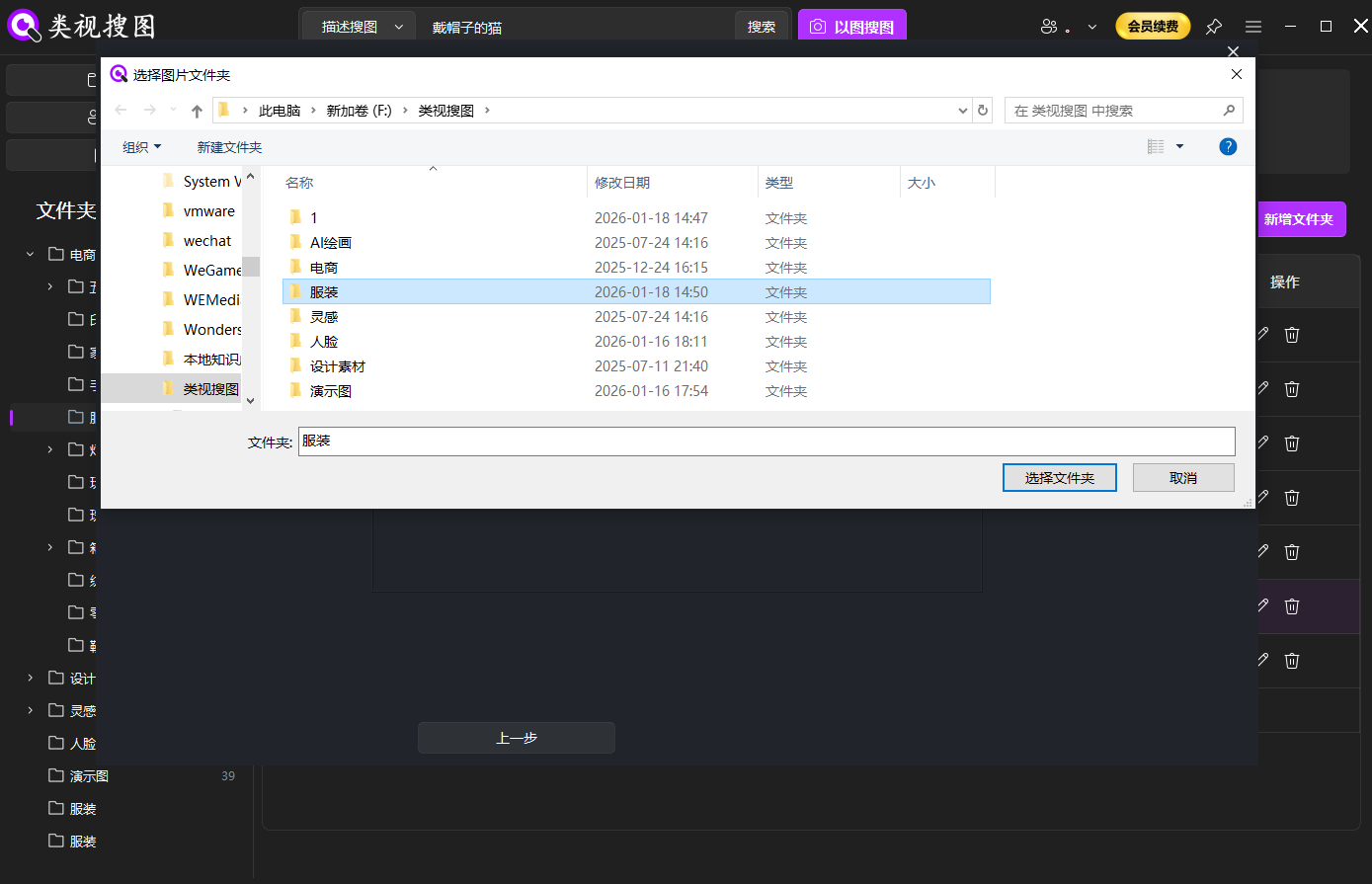 Caption: Index a few high-frequency design folders first so semantic image search stays fast and clean.
Step 2: write your first prompt from the design brief
A simple template works well: scene/object + style + mood/light + key elements.
Examples:
- “minimal product poster white background soft shadow”
- “cyberpunk neon street night haze”
- “cozy living room natural light wooden texture”
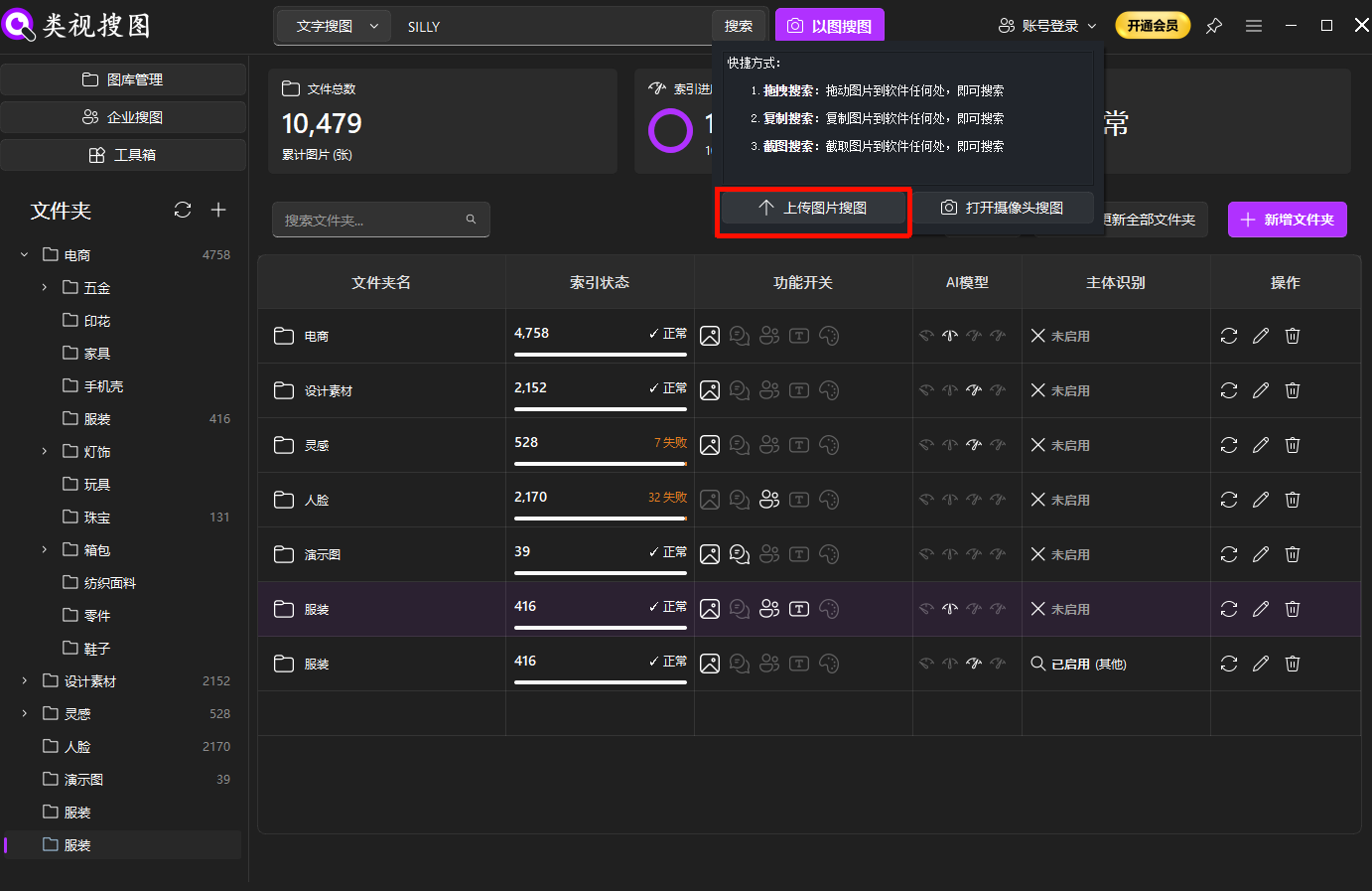 Caption: Search by description when you do not have a reference image yet.
Step 3: refine with a converge-then-expand strategy
When results are broad, refine in this order:
- Filter by folders: narrow to the current project library
- Sort by relevance: review the top results first
- Expand with synonyms: iterate with alternative words (e.g., “minimal/clean/white space”)
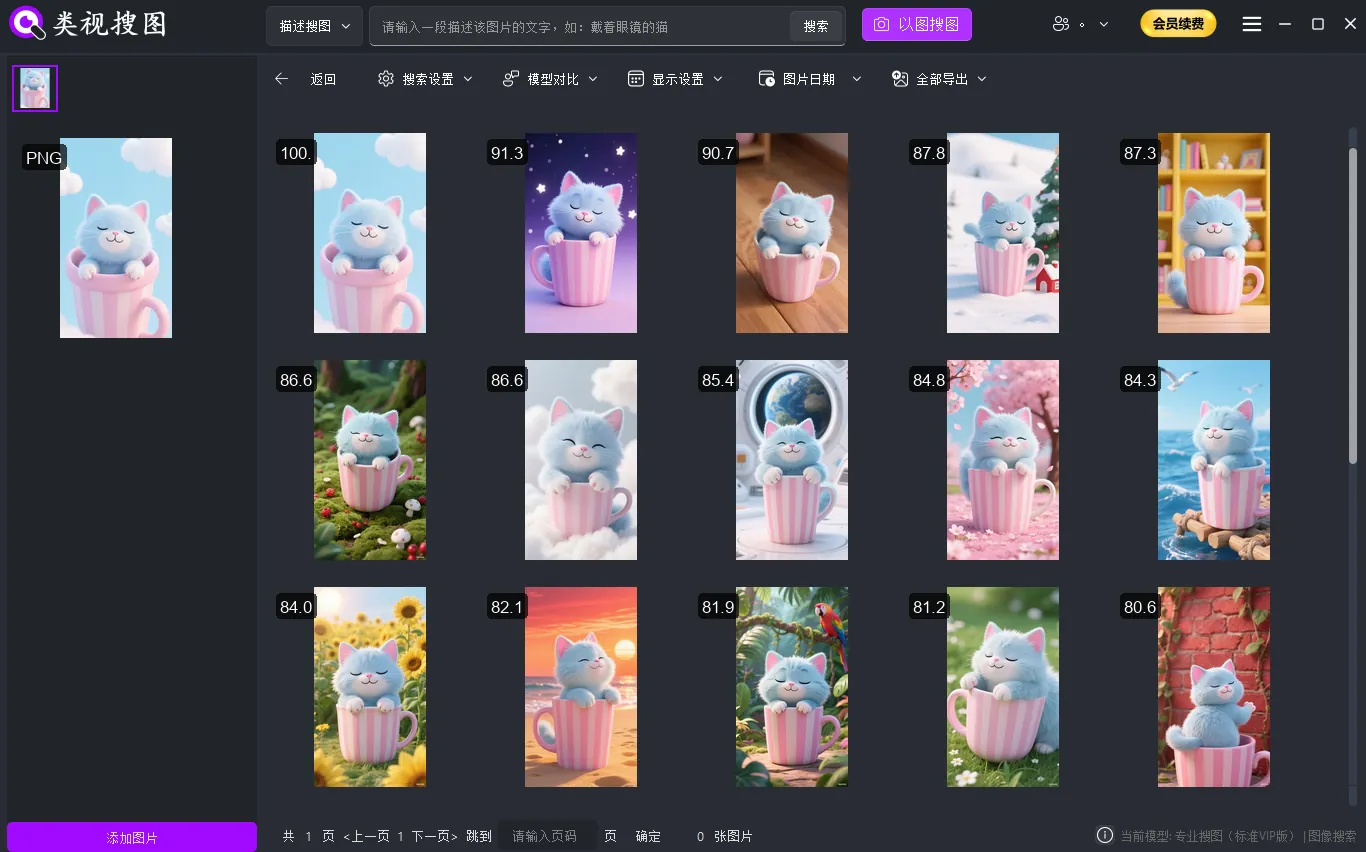 Caption: Converge with folder filters and relevance first, then open source paths to reuse the real files.
If you want to get faster at browsing and filtering on the results page, see: /en/docs/browsing-images
Prompt writing: 6 rules to improve semantic image search accuracy
- Name the deliverable before the vibe
- “poster / hero image / packaging / illustration / UI screenshot”
- Replace abstract words with visible cues
- “premium” → “low saturation, whitespace, thin typography, soft shadows”
- Rotate synonyms
- “sunset / dusk / golden hour”, “retro / film grain / texture”
- Add materials and rendering cues
- paper texture, metallic highlights, glass reflections, fabric folds
- Strict first, broad later
- start specific to converge, then remove nonessential tokens to widen
- Always pair prompts with folder scope
- keep results professional by reducing random downloads noise
To make this usable in real projects, keep a small prompt library. Start with one of these patterns and then swap style/mood/material terms:
- "[deliverable] [subject] [style] [background] [lighting]"
- "[scene] [mood] [color palette] [material] [composition]"
- "[brand vibe] [typography] [layout] [texture]"
Example prompt sets you can reuse:
- Poster: "poster minimal typography whitespace soft shadow"
- Packaging: "packaging mockup paper texture embossed logo neutral light"
- UI: "mobile app onboarding screen clean layout pastel gradient"
- Illustration: "editorial illustration grain texture limited palette"
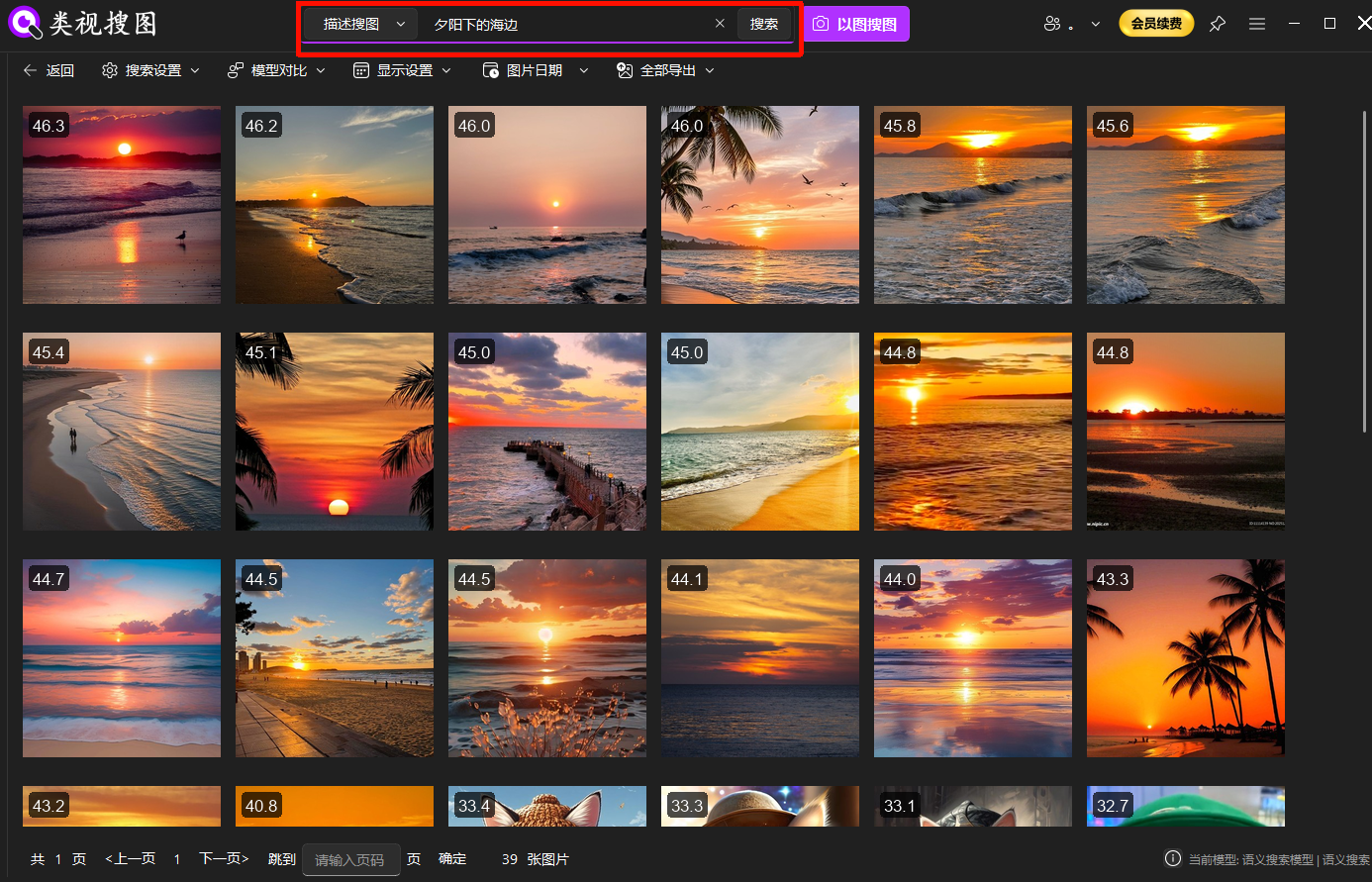 Caption: Turn abstract intent into visible cues and style terms to get better semantic image search matches.
Make inspiration reusable: keep your library low-noise
Semantic image search helps you find things, but speed improves only if you curate:
- Open the source folder and move good assets into a “selects/reusable” directory
- Use project-based top-level folders with purpose-based subfolders
- Remove duplicates and low-quality noise regularly
Simple weekly maintenance checklist:
- Move “keepers” into one curated folder (avoid scattering across exports)
- Delete obvious near-duplicates (keep only the best 1-3 variants)
- Rename folders (not files) with clear intent labels like “layout”, “color”, “materials”
If search feels wrong (too many irrelevant results, missing assets, or slow indexing), follow the troubleshooting checklist: /en/docs/faq
Summary and next step
As your library grows, “scrolling folders for inspiration” gets slower. If you standardize a loop—index → describe → refine → open source path → curate—semantic image search becomes a stable inspiration entry point.
Next step:
- Index one active project folder
- Test 5 prompts from real briefs
- Curate the best results into a reusable folder
Get started: /en/download