
Find Group Photos Fast with Local Multi-Face Search
What you often need is not “all photos of one person”, but “photos where multiple people appear together”: family group shots, team photos, event highlights, or friends at a dinner.
The hard part is that these photos are scattered across exports, camera backups, chat caches, and old project folders. Filenames rarely help.
This guide gives you a practical workflow with local multi-face search: build an indexed library and enable face search, search people by a face sample, then use intersection (A ∩ B) + time/folder filters to quickly narrow down to true group photos and open the source folder to reuse files.
You will benefit from this most in scenarios like:
- Family albums: “mom + dad + kid” group shots across years
- Weddings and events: “couple together”, “bride with parents”, “team group shots”
- Company activities: find photos where two colleagues appear together for comms/archives
The goal is not just to see thumbnails. The goal is to reliably get the actual files and archive them in a way that makes future retrieval cheaper.
Why “group photos” are harder than “photos of one person”
Single-person search is straightforward: find person A, then filter by time or folders.
Group photos add extra complexity:
- It is a set problem: you need A and B together, not A or B
- Faces change with angle/light/occlusion: side profiles, hats, low light, distance
- Group shots usually come from burst-like sequences, so you must converge fast
The key is to make “people” searchable first, then make “together” filterable.
Step 0: enable face search at indexing time
Local face search requires a completed index and the “Face Search” switch enabled for your folders.
- Setup and indexing: /en/docs/first_init
- Feature switches (face/semantic/OCR): /en/docs/gallery-management
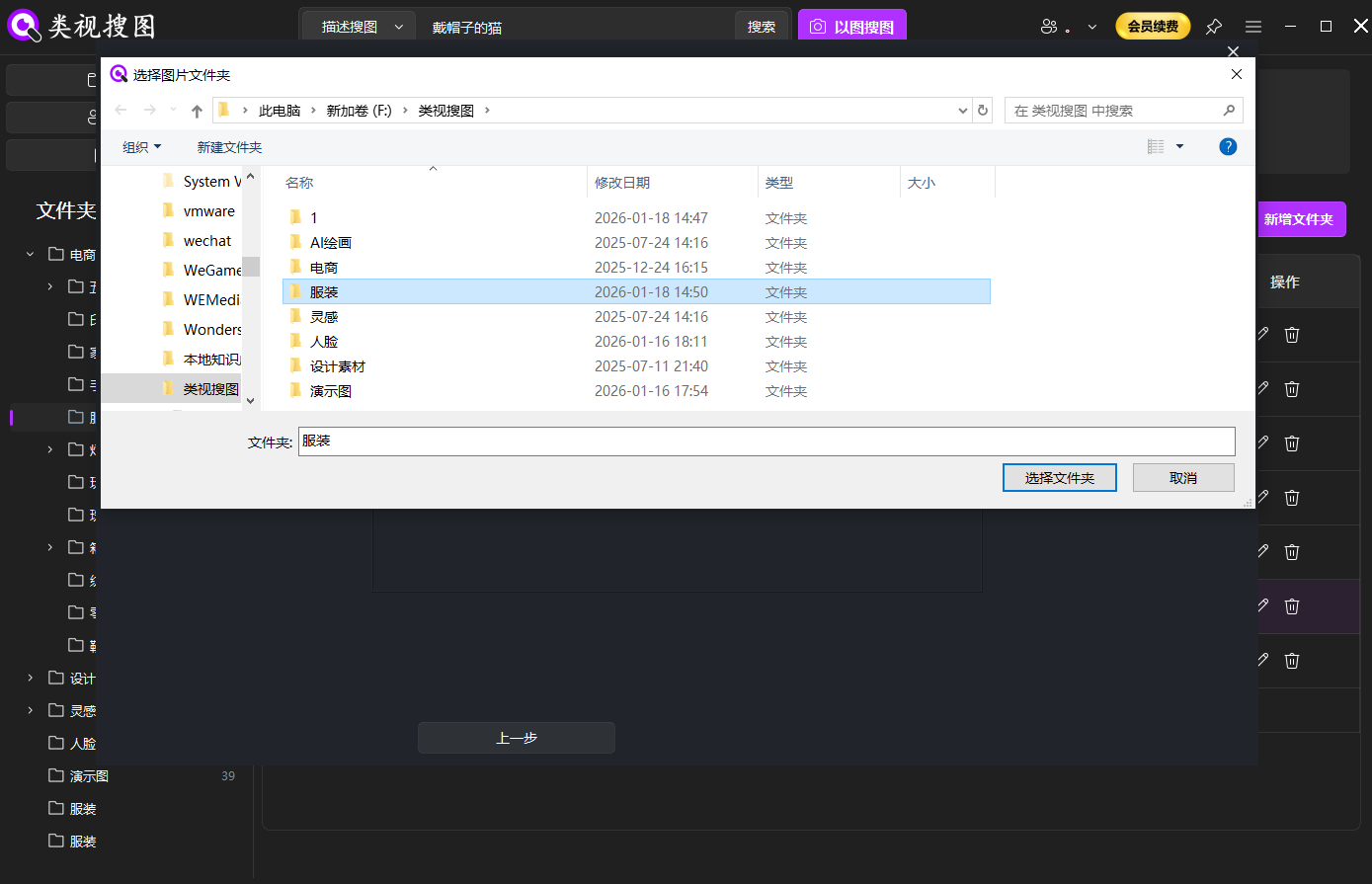 Caption: Index your high-frequency photo folders first so face search stays accurate and fast.
Indexing tips (faster + cleaner):
- Start with 1-3 core folders (events, albums, deliveries)
- Exclude noisy folders such as downloads and chat caches
- Prefer drives that stay online consistently
If you deal with recurring events, a folder convention makes filtering much easier later:
2026-01-EventName/RAW/,2026-01-EventName/Exports/People/GroupShots/,People/PortraitSelects/
When you reach the “filter by folders” step, clean folder naming is often a bigger speed lever than any model setting.
Also remember that enabling or changing feature switches may trigger re-processing for the folder. So if you are in a hurry (e.g., you just need one event album), start with that single folder, let indexing finish, and only then expand the scope.
Local multi-face search workflow: search people first, then filter “together”
The steps below match how local search apps work, including 类视搜图.
Step 1: prepare a clean face sample
A face sample can be a selfie, a portrait, or a cropped face region from a photo.
- Prefer clear, unobstructed faces
- Avoid heavy filters, extreme exposure, and over-cropping
Practical tip for group photos: do not rely on a single sample per person. Prepare 2 samples for each key person when possible:
- One clear front face
- One different angle or lighting (slight side profile, smile, indoor lighting)
This improves stability when the same person appears in different poses across the shoot.
Step 2: upload the face sample and search locally
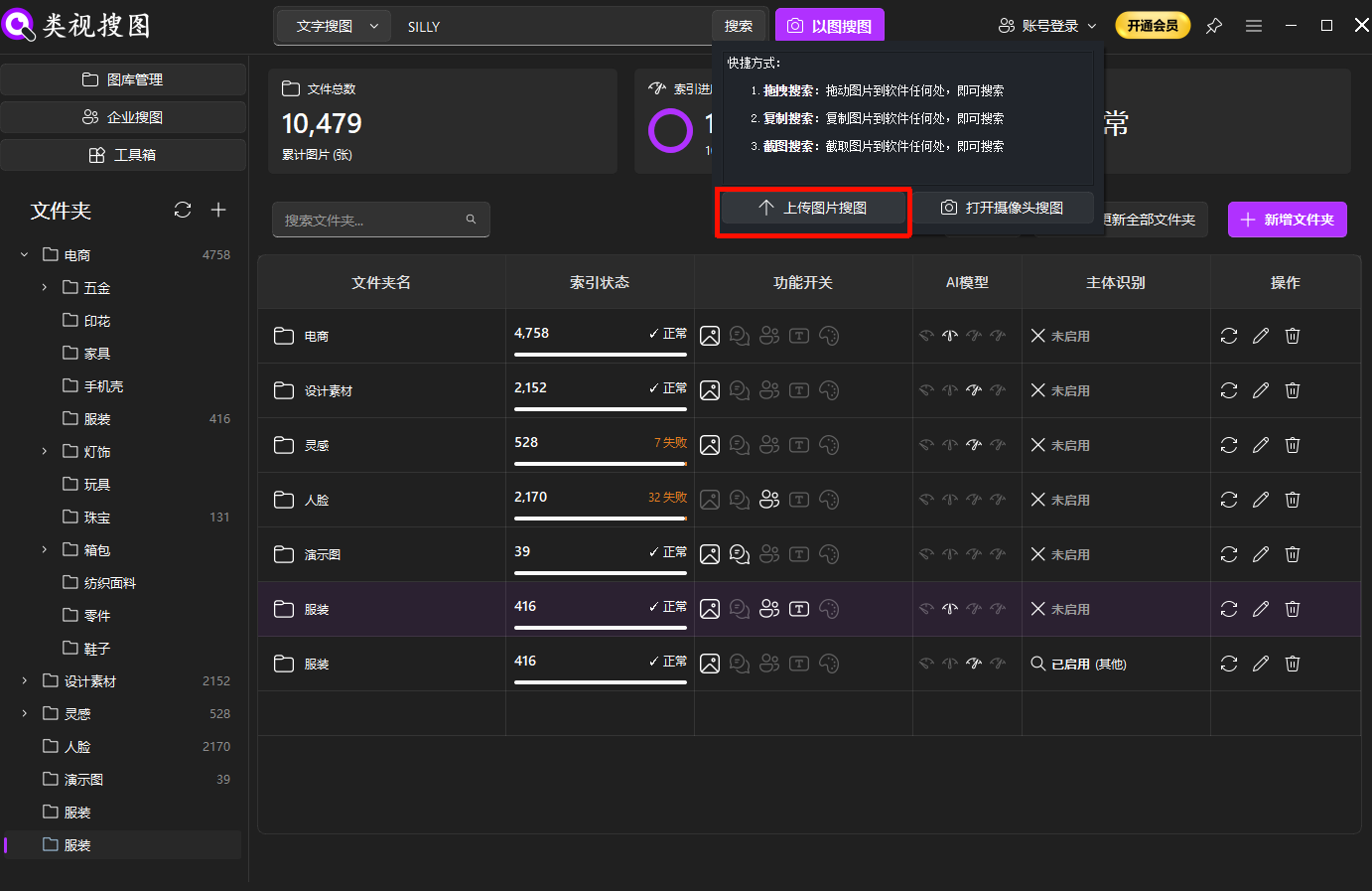 Caption: Searching by a face sample is faster than guessing filenames across albums.
Best practices:
- Narrow the scope to likely event/year folders first
- If results are too broad, increase the similarity threshold, then relax later
Troubleshooting checklist when results look wrong:
- Make sure the folder is actually indexed (not still scanning)
- Try a cleaner sample (less blur, less occlusion)
- Increase threshold to confirm identity first
- Switch to a tighter folder scope to reduce false positives
If you get “close but uncertain” matches, treat them as a temporary shortlist. Converge to a few dozen candidates first, then move on to intersection in the next step. This prevents you from spending time arguing with noisy results.
Step 3: move from “find A” to “find A with B” (intersection + time window)
Once you can reliably find person A, converge to true group photos:
- Filter by folders (event/project scope)
- Filter by time range (often 1-2 days for an event)
- Add person B and take the intersection (A ∩ B)
If you need three people together (A+B+C), use this order:
- Find A and converge to a small set
- Intersect with B: (A ∩ B)
- Intersect with C: (A ∩ B ∩ C)
Doing intersections on a smaller candidate set is faster and usually more accurate than intersecting against the full library.
Practical example (wedding delivery):
- Start with the bride’s face sample, filter to
2026-01-Wedding/Exports/, and converge to the top few dozen results. - Add the groom as the second face sample to get the intersection (bride ∩ groom).
- If you still get too many near-duplicates, add a time window (ceremony hour) or filter to the “group shots” subfolder.
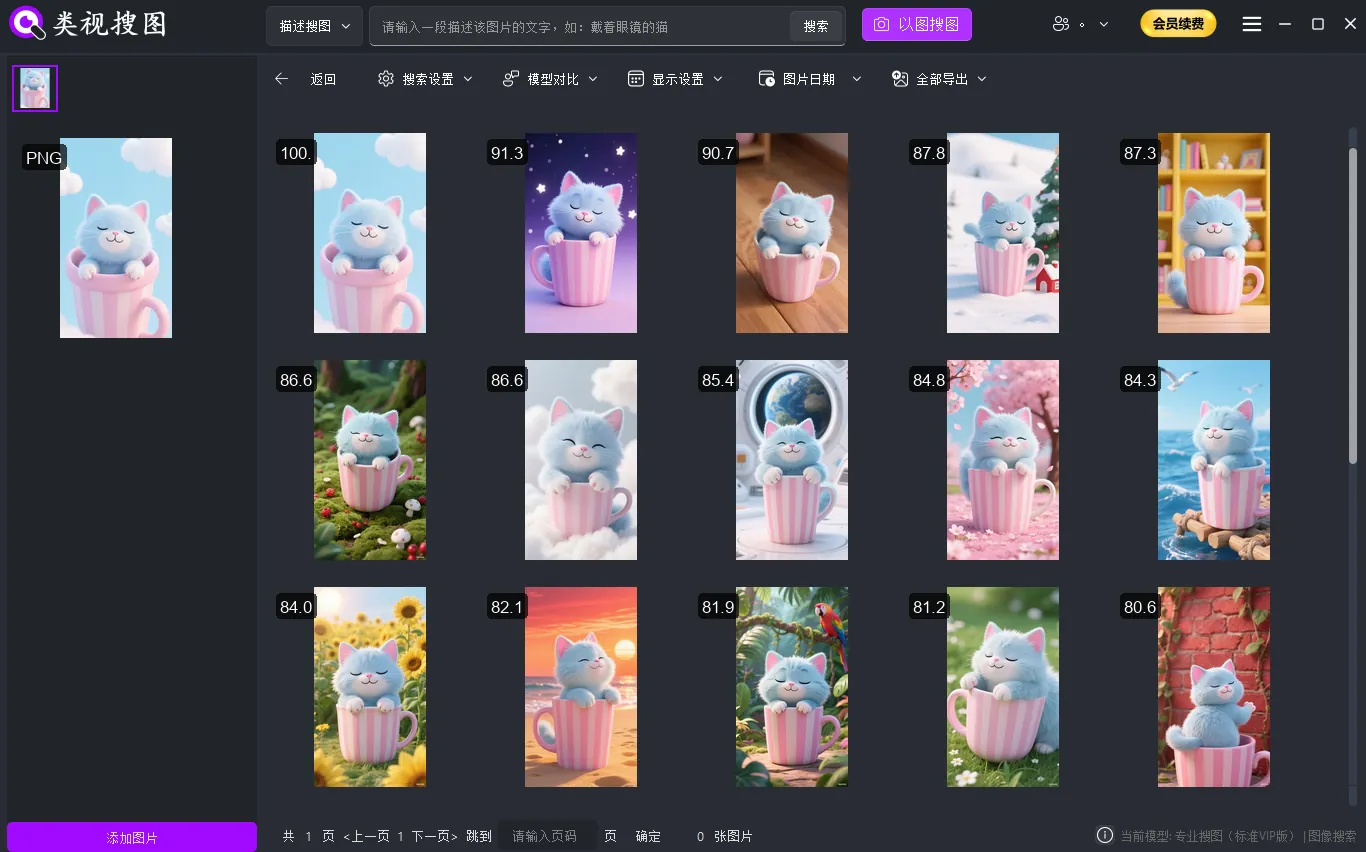 Caption: Converge with folder/time filters first, then intersect people to lock real group photos.
Step 4: open the source folder and archive selects
After you confirm a group photo, always open the source folder:
- Group shots often come in sequences; you can quickly pick better variants
- Archiving “group-shot selects” reduces future search cost
A simple archiving pattern that scales:
- Keep originals where they are (do not scatter copies everywhere)
- Create a “selects” folder next to exports
- Put only the best group shots there
Example:
Event-A/Exports/Event-A/Selects-GroupShots/Event-A/Selects-Portraits/
Next time you search, you can limit your scope to selects first for a low-noise experience.
If you need deliverable-ready group shots, add one more habit: after opening the source folder, quickly flag or copy only the best frames (sharpest, most flattering expressions). This is where group-photo search turns into a repeatable selection workflow.
For faster browsing and filtering shortcuts, see: /en/docs/browsing-images
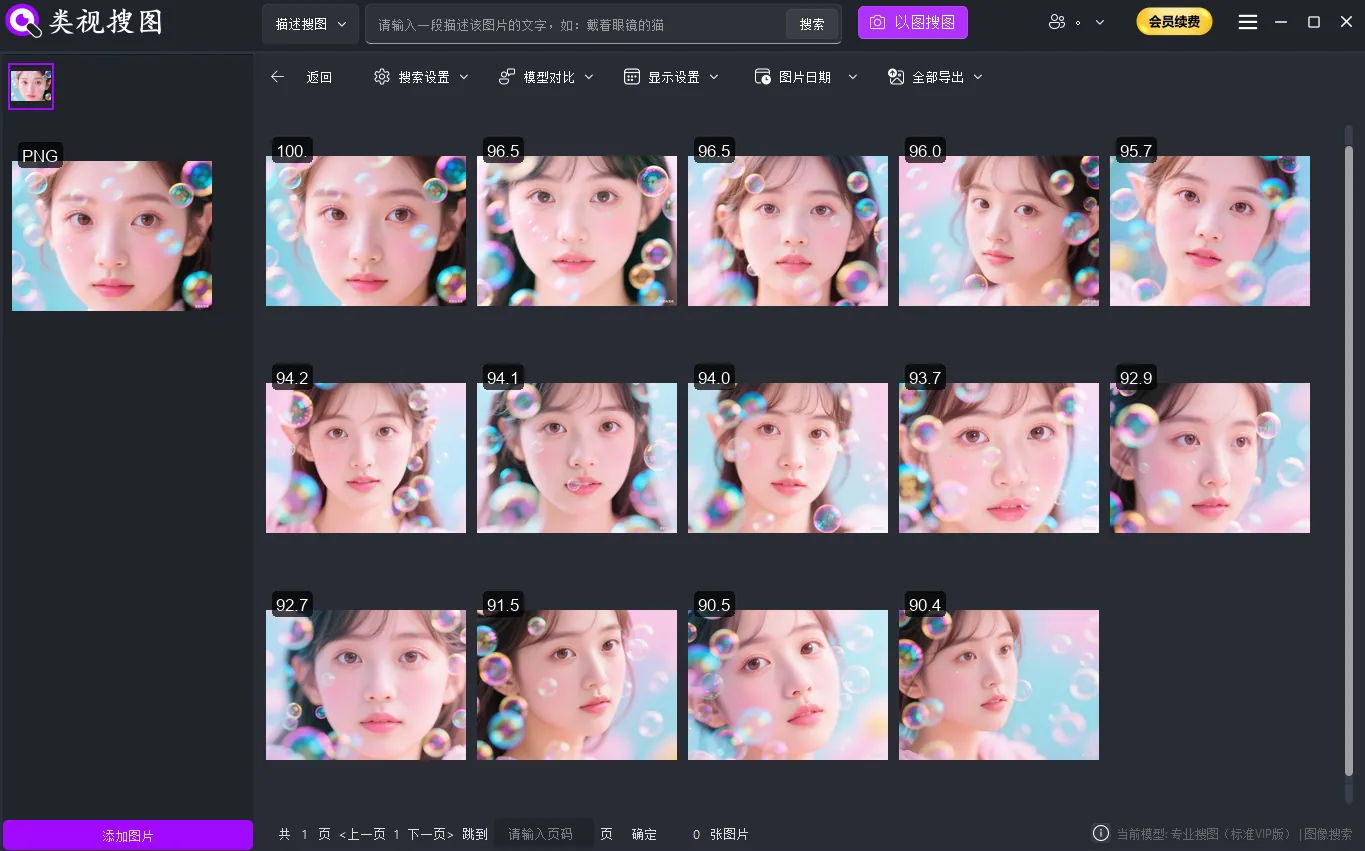 Caption: With face results + intersection + scope filters, group-photo retrieval becomes repeatable.
6 tips to improve accuracy for multi-person group photos
- Scope first, then full library
- Start with event folders before searching everything
- Strict first, broad later
- Use a higher threshold to confirm identity, then relax to widen
- Use multiple face samples
- 2-3 samples under different angles/lighting improves stability
- Use a time window
- Events usually happen within a narrow date range
- Converge A first, then add B
- Do not intersect on a huge result set; narrow A to dozens first
- Curate a “group shots” folder
- Keep reusable selects in a stable path for future reuse
FAQ
Q: Will masks, hats, or side profiles break local multi-face search?
A: They can reduce match stability. Use multiple samples per person (front + side/light variation), start with a higher threshold in a narrow folder scope, then relax once identity is confirmed.
Q: I do not know the second person’s name. I only know they often appear together. What should I do?
A: Find person A first, then review the top results to identify the frequent co-appearing person. Crop a clear face from those photos to create a sample for person B, then intersect (A ∩ B).
Privacy and security: why local multi-face search matters
Face data is sensitive. Local processing is a safer default:
- Indexing and recognition happen on your machine
- Better for private albums and client deliveries
- Works in offline and multi-drive setups
Summary and next step
A reliable loop for finding group photos is:
- Index folders and enable face search
- Search person A by face sample
- Filter by folder/time
- Add person B and intersect (A ∩ B)
- Open source paths and archive selects
Get started: /en/download